

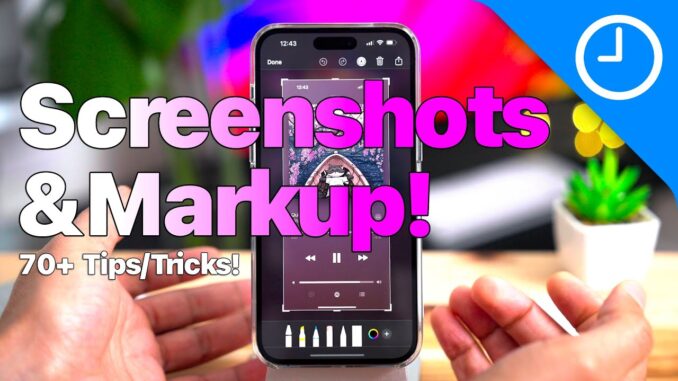
In this video, Jeff shows you how to master screenshots on iPhone and iOS 16. This is a great guide for beginners, including some tips, tricks, and hidden features for iPhone experts!
Subscribe: 🔔
Comment: 📝 Sound off in the comments with your thoughts.
Follow Jeff: ✅ |
FTC: We use income earning auto affiliate links:
CHAPTERS:
00:00 Introduction
00:23 How to take a screenshot
00:28 Disable screenshot sound
00:41 Thumbnail auto-dismiss time
00:52 Quick-dismiss screenshot thumbnail
00:57 Screenshots save to Photos when dismissed
01:10 Screenshots Album in Photos
01:35 Keep screenshot thumbnail on screen
01:51 Take multiple screenshots in succession
02:09 Drag screenshots to apps like Messages, Mail, Files, etc.
03:01 Drag multiple screenshots to an app
03:29 Drag screenshot directly to Photos app / albums
03:49 You cannot take screenshots of DRM'd videos
03:58 Open the screenshot editor
04:11 How to exit the screenshot editor and go back to thumbnail view
04:18 How to edit multiple screenshots at the same time
04:29 Take a screenshot while in the screenshot editor
04:38 How to delete a single screenshot
04:52 How to share a Screenshots via Share button
05:15 Long-press thumbnail to share screenshots via the iOS share sheet
05:25 How to rename screenshots
06:01 How to delete a screenshot using ‘Done’ menu
06:11 How to delete all screenshots using Done menu Delete option
06:21 How to 'Copy and Delete' a screenshot
06:48 How to save screenshots to Photos app
07:03 How to save screenshots to the Files app
07:28 How to save screenshots to a Quick Note
07:44 Toggle markup mode
08:21 How to crop and scale a screenshot
09:38 How to select text from a screenshot
10:08 How to copy all text from a screenshot
10:23 How to use Visual Look Up
11:07 How to use select text to navigate to web
11:23 Markup writing tools
11:44 Each tool is assigned its own independent color, and it retains that color
12:34 How to change markup tool settings (stroke thickness and opacity)
13:21 How to quickly tell stroke thickness
13:42 How to quickly tell tool opacity
14:08 Opacity can be altered in either color picker or tool menu
14:24 Eraser tool
15:07 Selector tool (draw around item to select)
15:33 Selector tool (long press to select multiple items and use drag handles)
16:01 Selector tool (tap to select all)
16:10 Using the ruler
16:29 Use ruler to lock in to specific angles
16:55 User ruler with drawing tool to measure pixel distance
17:13 How to use the color picker
17:47 Long press the color picker to quick select colors
17:59 How to add and delete colors from the color picker
18:40 How to use the eyedropper tool to select colors
19:01 How to move screenshots to apps after marking up
19:14 Allow screenshot thumbnail to disappear after marking up
19:28 How to undo / redo changes
19:46 How to see undo order
20:07 How to undo all changes
20:13 Undo/redo is on a per-screenshot basis
20:43 How to add an image description to screenshots
21:04 Adding text to screenshots
22:04 Adding signatures to screenshots
23:24 Changing screenshot opacity
23:49 The Magnifier tool (change position, size, zoom, border thickness and color)
24:56 Using the shape tools
25:40 How to cut, copy, delete, and duplicate shapes
25:54 Changing shape thickness, border and fill color
26:48 How to use smart shapes to create straight lines, hearts, stars, and more.
27:38 How to filter edited screenshots in Photos app
28:26 How to revert to original screenshot in Photos app
28:41 Use Siri to take a screenshot
28:48 Take a screenshot with a back tap
29:05 Take screenshots with Shortcuts
29:32 Get latest screenshots via Shortcuts
30:18 Using advanced markup tools in Notes app: fountain pen, airbrush, shapes
31:49 How to take Safari full page PDF screenshots
33:04 Use screen recorder to take screenshots of hard-to-capture scenarios
FOLLOW
–
–
CREDITS
– Final Cut Pro Plugins by MotionVFX:
– Music by Soundstripe:
– Captions by Rev:
TAGS
#iOS16 #apple #iphone



Thanks Jeff, amazing how much I think I know until I watch your tutorials!
So many fantastic tips, especially appreciated as I’m a big screenshot guy (often for my mobile first web design biz showcases)
If you’d asked me before watching this video I would have said I was an advanced user. After watching… not so much. Amazing video. Thank you! Please do more of them.
I like the Master class concept would you do that for the note app?
If you took a screenshot from an app the top center vertical crop handle also snaps to the bottom of the status bar for a precise crop. Same goes for the bottom center crop handle. It snaps in place above the swipe indicator to precisely crop that away. Does obviously not work on screenshots from the home screen or video playback.
Wow. Amazing video. I really didn’t know a lot. Thank you!
Fantastic video. More please.